
All your rules live on one screen — the AI Review Reply Rules page, opened from your Reviews page. Here's how to set it up.
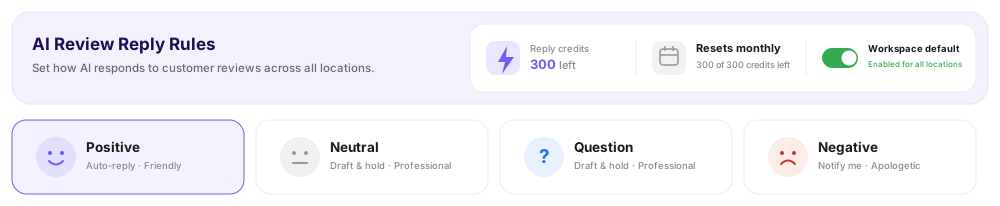
- 1Open Reviews and go to Auto-Reply (the AI Review Reply Rules page).
- 2Turn on the Workspace default toggle at the top right to enable auto-reply across all your locations.
- 3Pick a review type tab — Positive, Neutral, Question or Negative — and set its rule.
- 4Repeat for each type, then click Save changes.
The review type tabs
Reviews are grouped into four types so you can treat each one differently. Click a tab to edit that type's rule; the label under each tab shows its current action and tone at a glance.
What each field does
- Action — what AI does for this review type: Auto-reply, Draft & hold for approval, Notify me only, or Off. See Reply Modes and Tones.
- Tone — the voice of the reply: Friendly, Professional, Playful or Apologetic. Shown only when the action writes a reply.
- Delay (minutes) — how long to wait after a review arrives before replying. A short delay gives you a window to catch anything you'd rather handle yourself.
- Notify me — email you when a reply is published for this review type.
A recommended setup
- Positive — Auto-reply, Friendly, a short delay. Thank happy customers automatically.
- Neutral — Draft & hold, Professional. Review the reply before it goes out.
- Question — Draft & hold, Professional. Make sure the answer is right before it posts.
- Negative — Notify me only, Apologetic. Handle unhappy customers personally — AI never auto-posts to a bad review.
Note ·Your changes aren't live until you click Save changes at the bottom of the page.
Tip ·Use the Live preview on the right to see a real reply for your current settings before you save.