
Approve held drafts
When a rule is set to Draft & hold for approval, AI writes the reply but waits for you. Held drafts appear under Drafts awaiting approval on the Auto-Reply page.
- 1Open the Auto-Reply page and find Drafts awaiting approval.
- 2Read the review and the drafted reply; edit the text if you want.
- 3Click Approve & send to publish it to Google, or Dismiss to discard it.
Location-specific overrides
By default every location uses your workspace rules. You can give a specific location its own rules instead.
- 1Open Location-specific overrides near the bottom of the page.
- 2Click Add override and pick the location.
- 3Set that location's rules and save. Every other location keeps using the workspace default.
Notification emails
The Notifications card controls who hears about your auto-replies.
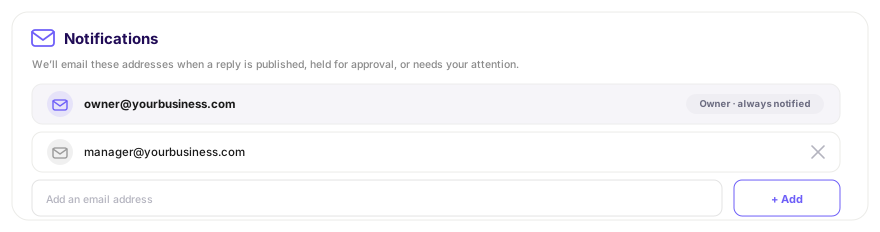
- The workspace owner is always notified and can't be removed.
- Add any extra addresses — a manager, a shared inbox — in the Notifications card.
- Emails go out when a reply is published (if that type's Notify me is on), when a draft needs approval, and when a review needs your personal attention.
Note ·Notification emails are written in English, but the review and the AI reply inside them appear in their original language.